Back
The Missing Link: How to Create a Single Source of Truth for Retail Planning
Laura B
Marketing Analyst

The context
Let’s be honest for a second. Running an online shop often feels less like "retail strategy" and more like being a detective.
You have one tab open for your warehouse orders. Another tab for your sales data. Maybe a spreadsheet (or three) floating around. You are constantly hunting for clues just to answer a simple question: "Should I buy more of this?"
This is the messy reality of unified commerce. It sounds fancy, but often it just means you have data living in too many different houses.
The warehouse team knows things the planning team doesn't. And that silence? It costs money.
The "Black Box" Problem
Most modern retail operations rely on a decentralized technology stack. Retailers manage critical product attributes—such as material composition, country of origin, specific handling codes, or legacy SKUs—across various specialized systems, including:
WMS (Warehouse Management Systems)
3PL (Third-Party Logistics Portals)
OMS (Order Management Systems)
While these systems handle execution, you have automated inventory planning tools (like Tightly) handling planning and decision-making. But the historical disconnect between execution data and planning views creates a blind spot in your supply chain visibility. You are making decisions based on half the story.
The Stakes: Why Visibility is Critical
The cost of this disconnect isn't just about inconvenience; it directly hits your bottom line. "Dead Stock"—inventory that you’ve paid for but can’t sell - often happens not because of bad luck, but because of a simple gap in inventory decision making.
Imagine this scenario: your warehouse team or product managers mark a specific item as "Discontinued" or "Do Not Reorder" inside your WMS because a new version is coming out or the vendor has stopped making it. However, if your planning team in Tightly can’t see that specific tag, they are flying blind. They see sales history and a depleting stock count, and their instinct is to trigger a reorder to meet demand.
The result? You accidentally spend thousands of dollars restocking a product that is already obsolete. That capital is now trapped on a shelf, gathering dust instead of generating profit, and eventually, you'll have to liquidate it at a loss. By pulling these "Discontinued" or "Status" custom fields directly into your purchasing view, you effectively put a warning sign right in front of the buyer, protecting your cash flow and ensuring every dollar spent is on inventory that actually has a future.
Fixing the Glitch -
We realized that Integrated Business Planning isn't just a buzzword. It literally means your plan needs to match reality, so we updated our platform with enriched custom fields.
We essentially built a bridge. Now, seamless ecommerce tech stack integration ensures your custom fields sync automatically from your warehouse or operations platform directly into your Tightly views.
This smooths out your wms integration workflow and is a huge step for retail operations automation. It means:
No more tab switching: You don't have to log into the 3PL portal just to check a country of origin.
No more guessing: If the warehouse says it's "Hazardous," you see "Hazardous" right next to your reorder button.
Master data management that actually works:** You don't have to copy-paste data into spreadsheets and pray you didn't make a typo.
Overview
Follow these steps to choose which fields appear in your view.
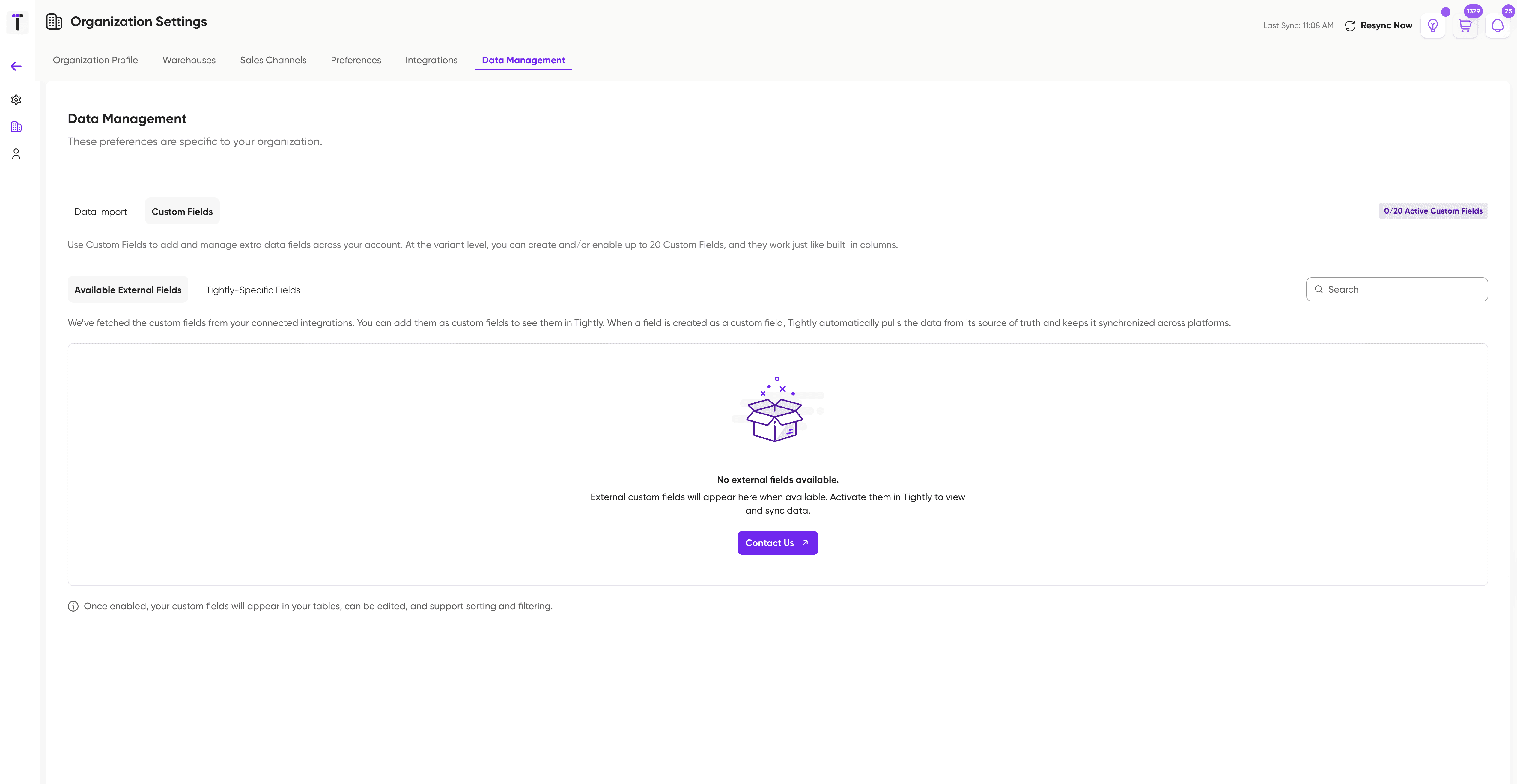
Step 1: Access Data Management
Log in to Tightly.
Navigate to the settings menu
Click on Organization
Select Data Management.
Click on the Custom Fields tab.
Step 2: Browse Available External Fields
On this page, you will see a list of all custom fields Tightly has automatically discovered from your connected integrations.
Step 3: Browse Tightly Specific Fields
Create a custom field to capture extra details so you have full visibility when managing inventory.
Step 4: Enable Fields
Locate the field you want to see in your planning tables.
Toggle the switch to On/Enable.
Repeat for any other fields you need.
Step 5: View in Tables
Navigate back to your main inventory or planning pages (e.g., the Variants table).
You will now see new columns corresponding to the fields you just enabled.
→ Note: These columns are read-only. To edit this data, you must update it in the original source system.
Why This is a Big Deal for You
Whether you are in the UK, the US, or Germany, the pressure is on. Margins are tight. You need centralized inventory management that doesn't require a PhD to figure out.
By bringing these custom fields into the light, Tightly becomes your single source of truth retail window. You get to stop playing detective and start being a strategist.
→ The Bottom Line: Your external system remains the master record, but Tightly becomes the single window where you view it all.
Frequently Asked Questions (FAQ)
Q: Can I edit these custom fields inside Tightly? A: No. These fields are read-only. Tightly treats your external system (WMS/OMS) as the "master" record. This prevents data conflicts and ensures that the information in Tightly always matches the reality in your warehouse. If you need to change a value, update it in your WMS, and it will sync to Tightly.
Q: How often does the data update? A: The data updates automatically according to the standard sync schedule for your integration. Additionally, whenever you trigger a Manual Sync in Tightly, these custom fields are updated immediately.
Q: I don't see a specific field in the list. What should I do? A: First, ensure the field exists and is populated in your external system. If it's a brand new field, try running a manual sync in Tightly to force a refresh of the schema. If it still doesn't appear, please contact Support to check if that specific field type is supported by the API.
Q: Do these fields appear on all tables? A: Currently, these fields are designed to appear on variant-based tables (like the main Inventory or Replenishment views) where product-level detail is most relevant.
Q: Will adding many fields slow down Tightly? A: No. We have optimized the view so you can enable the context you need without impacting performance. However, for the best user experience, we recommend only enabling the fields that are actively useful for your decision-making to keep your tables clean.
Laura B
Marketing Analyst
Share